Click on the icon to start downloading SiteVision.
The instructions below will guide you through the installation of the SiteVision software. The screen captures below may vary slightly depending on the operating system and your choice of browser.
Before you start the download, read the instructions below so that you have the appropriate information available when requested. To unlock the software you can either enter a Turfguard.net user name and password or contact NSN for an unlock code.
Click here to view the latest release notes.
Click on the icon to start downloading SiteVision.
Depending on your browser, you will see the download in progress and then be able to run the install program.
| Internet Explorer |
 Select Run.  wait for download to complete...  Select Run. |
| Chrome |
At the bottom of the browser window, the download progress will be displayed.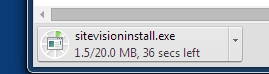 Wait for download to complete 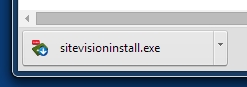 Click on the button. |
Depending on your operating system setup, you may be prompted to acknowledge whether you want to run the downloaded program.
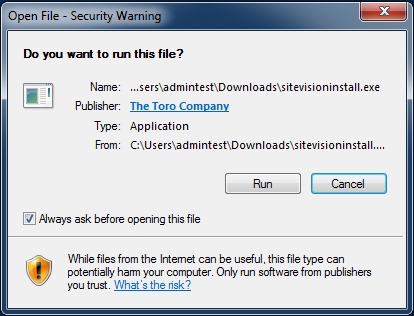
Since the program is authenticated by Toro it is safe to install, select Run.
During the install, if a previous version
of SiteVision is already installed, it will be
removed and overwritten by the newer version, if this happens, your previous
settings will be preserved.
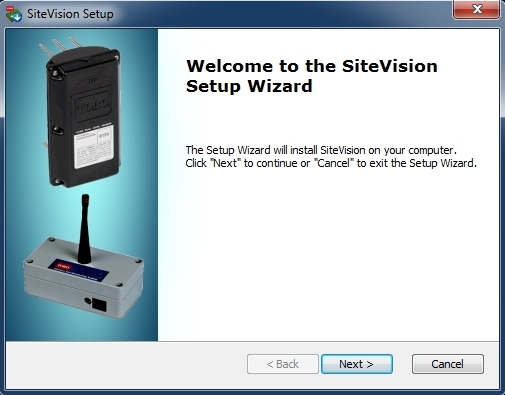
Select Next.
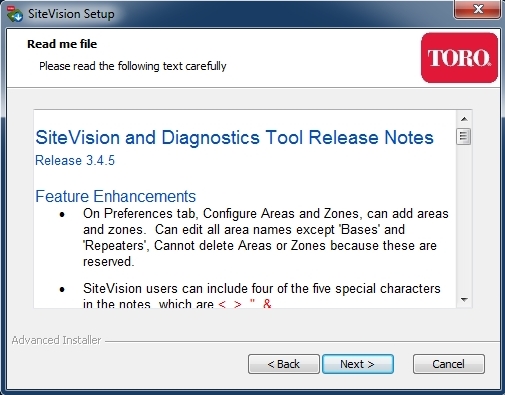
Review the changes in the Release Notes then select Next.
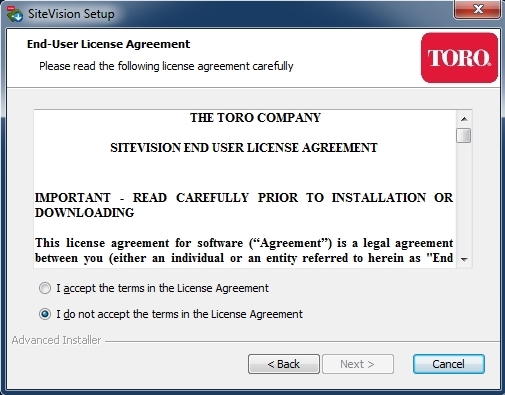
Accept the terms in the License Agreement and select Next.
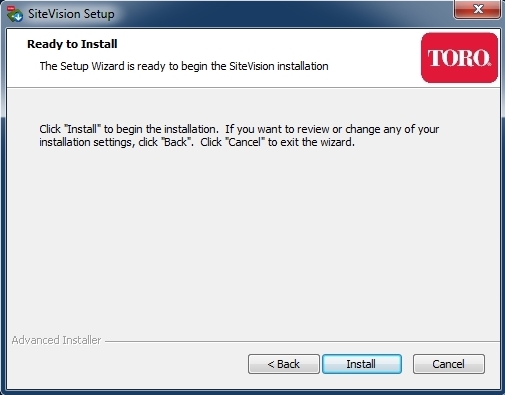
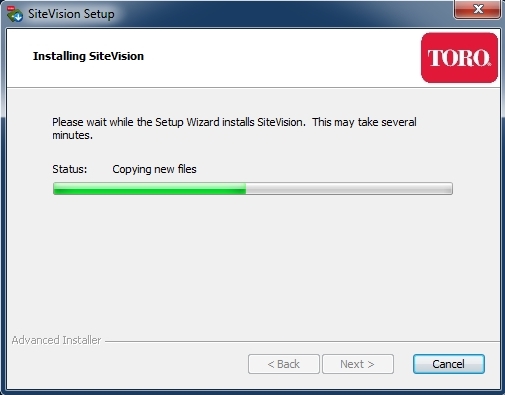
Start the install process by selecting Install, on most computers, this will take less than a minute.
Depending on your operating system setup and if the current signed-in user does not have administrator privileges, during the installation, you may be prompted to temporarily allow administrator access and this may require you to provide a password.
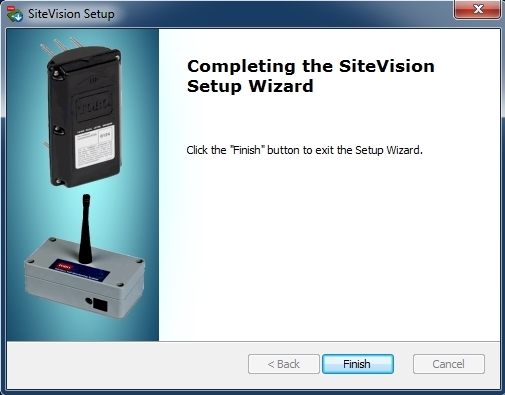
Click Finish.
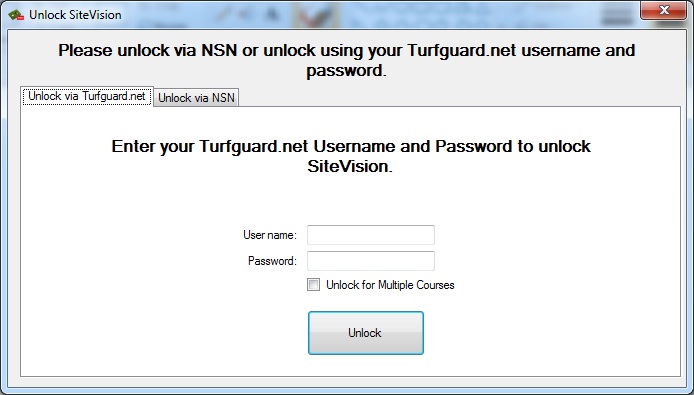
To unlock the software you can either enter a Turfguard.net username and
password to unlock SiteVision or contact NSN for an unlock code.
If you plan on using SiteVision to access data from multiple courses then you must check the "Unlock for Multiple Courses Option."
 Start SiteVision by double-clicking on the icon on the desktop
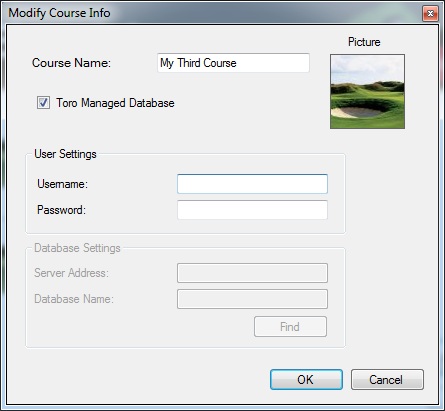
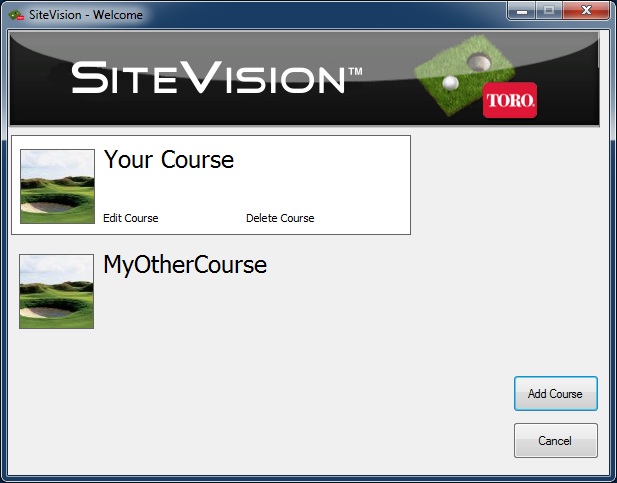
To add a course to your course selection menu, Click on "Add Course", then enter your new course and account information.
Fill out the requested informaiton: